
1. The WhatsApp Font Size Dilemma: Why Changing Phone Settings Doesn’t Work
Almost everyone who uses WhatsApp has wanted to send a message that literally shouts off the screen—whether to congratulate a friend on their birthday, make an urgent server maintenance announcement in a community group, or emphasize a critical meeting deadline. However, when you type a message in WhatsApp, it appears in the exact same standardized, modest font size as every other message in the chat.
Many users try going into their phone’s operating system settings (such as Settings > Display > Font Size & Style on Android or Settings > Display & Brightness > Text Size on iPhone). While doing this makes the text on your personal screen appear larger, it has absolutely zero effect on your recipient’s phone!
WhatsApp renders incoming chat bubbles based entirely on the recipient’s local device preferences. If your friend has their phone font set to small, your message will display small on their screen, regardless of how large you made the font on your own phone.
Furthermore, changing your phone’s system font scale disrupts every other application on your device—pushing navigation buttons off-screen, breaking banking apps, and cluttering your notifications. The question remains: Is there a way to send genuinely large text messages on WhatsApp without touching your phone settings at all? The answer is an emphatic YES, and in this guide, we reveal the two proven methods to achieve it using our free Big Text Generator.
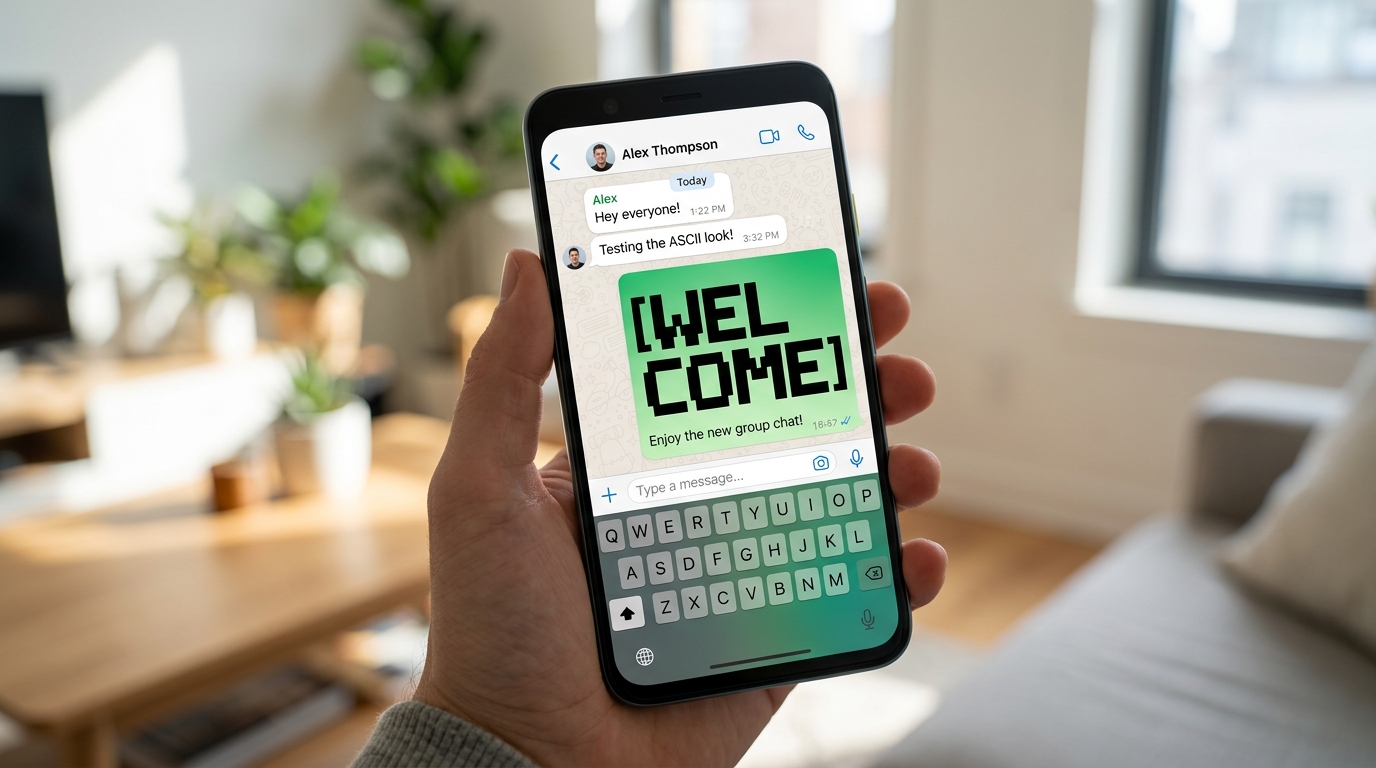
Changing your phone’s display font size only alters your local screen rendering. To make a message appear large on the recipient’s phone, the text itself must be formatted using multi-line ASCII block characters or wide Unicode alphanumeric glyphs.
2. WhatsApp Native Formatting Engine: What It Can and Cannot Do
Before diving into giant text methods, it is essential to understand what WhatsApp’s native markdown formatting shortcuts offer. WhatsApp includes built-in syntax rules outlined in the official WhatsApp Formatting FAQ that allow you to modify text weight and slant directly from the keyboard:
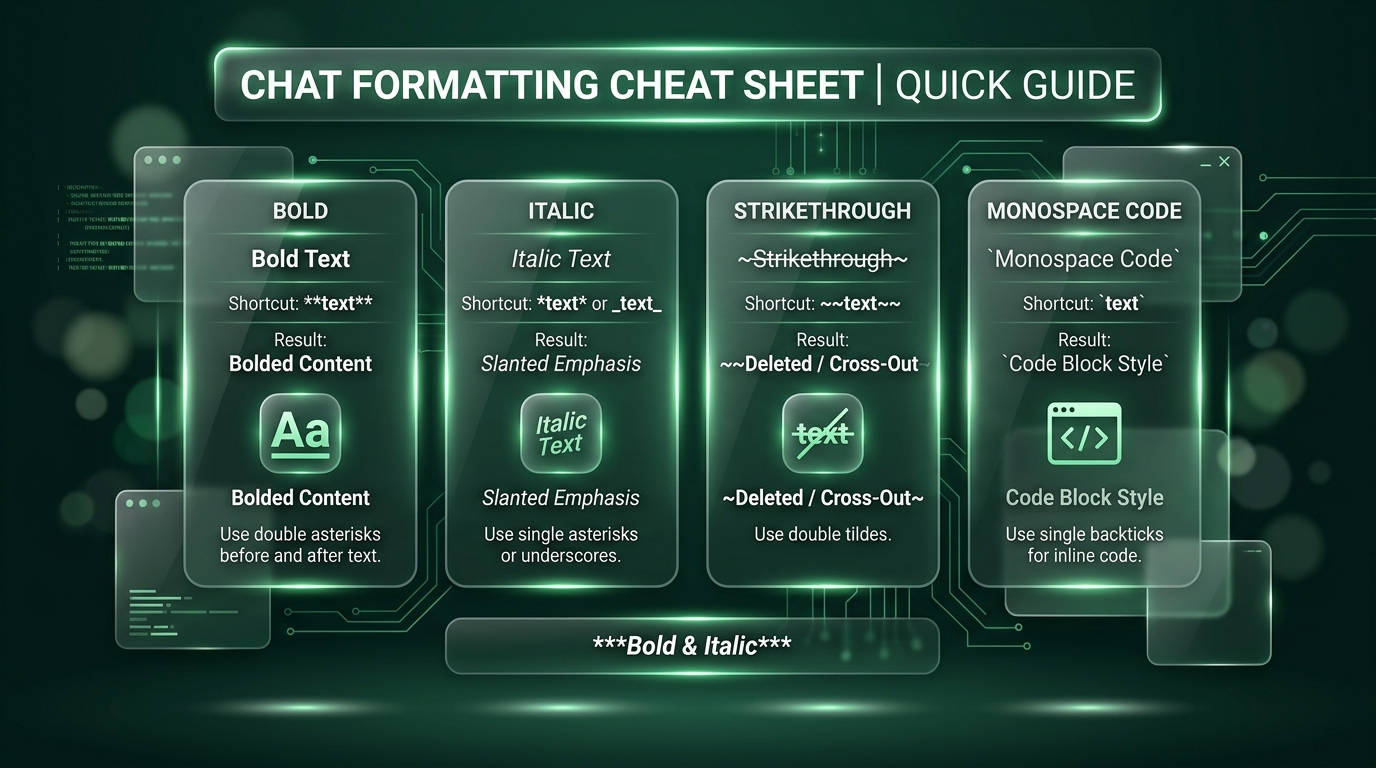
Typing *bold* makes characters darker and thicker, which improves readability, but it remains constrained to the exact same 14px–16px vertical height as standard chat text. To break beyond this height, you must combine character construction techniques.
| Formatting Style | Syntax / Keyboard Shortcut | Example Output in Chat | Does It Increase Text Size? |
|---|---|---|---|
| Bold | Asterisk before and after: *Hello* | Bold text (*Hello*) | No (Increases stroke weight only) |
| Italic | Underscore before and after: _Hello_ | Slanted italic text (_Hello_) | No (Slants font angle) |
| Strikethrough | Tilde before and after: ~Hello~ | Line through text (~Hello~) | No (Adds horizontal line) |
| Monospace | Triple backticks: ```Hello``` | Fixed-width developer font | No (Changes font family to monospace) |
| Bulleted List | Asterisk/Hyphen + space: * Item | Formatted bullet point list | No (Adds indentation) |
| Numbered List | Number + dot + space: 1. Item | Formatted numbered list | No (Adds standard numbering) |
| Quote Block | Angle bracket + space: > Message | Indented quote with vertical line | No (Indents paragraph) |
3. Method 1: Mathematical Fullwidth & Unicode Bold Typography
The first technique to produce text that looks noticeably larger and more prominent on WhatsApp is using Fullwidth (Wide) Unicode typography and Mathematical Bold Sans glyphs.
In typography and computational character sets, standard Western Latin characters are "halfwidth"—meaning their horizontal bounding box is narrow compared to their height. However, the Unicode standard contains a dedicated set of "Fullwidth" characters originally created to align with traditional East Asian (CJK) ideograms. These characters occupy a wide square footprint.
When you convert a message like "CONGRATULATIONS" into Fullwidth characters using Big Text Generator, the resulting text: CONGRATULATIONS occupies almost triple the horizontal screen space of normal text. On mobile displays, this forces the message to span the entire width of the chat bubble, creating an unmistakable, commanding visual presence without breaking phone settings.
Pairing Fullwidth characters or Mathematical Bold Sans (𝗕𝗜𝗚 𝗧𝗘𝗫𝗧) with WhatsApp’s native bold syntax creates an ultra-thick, high-contrast headline that instantly commands attention in active group chats.
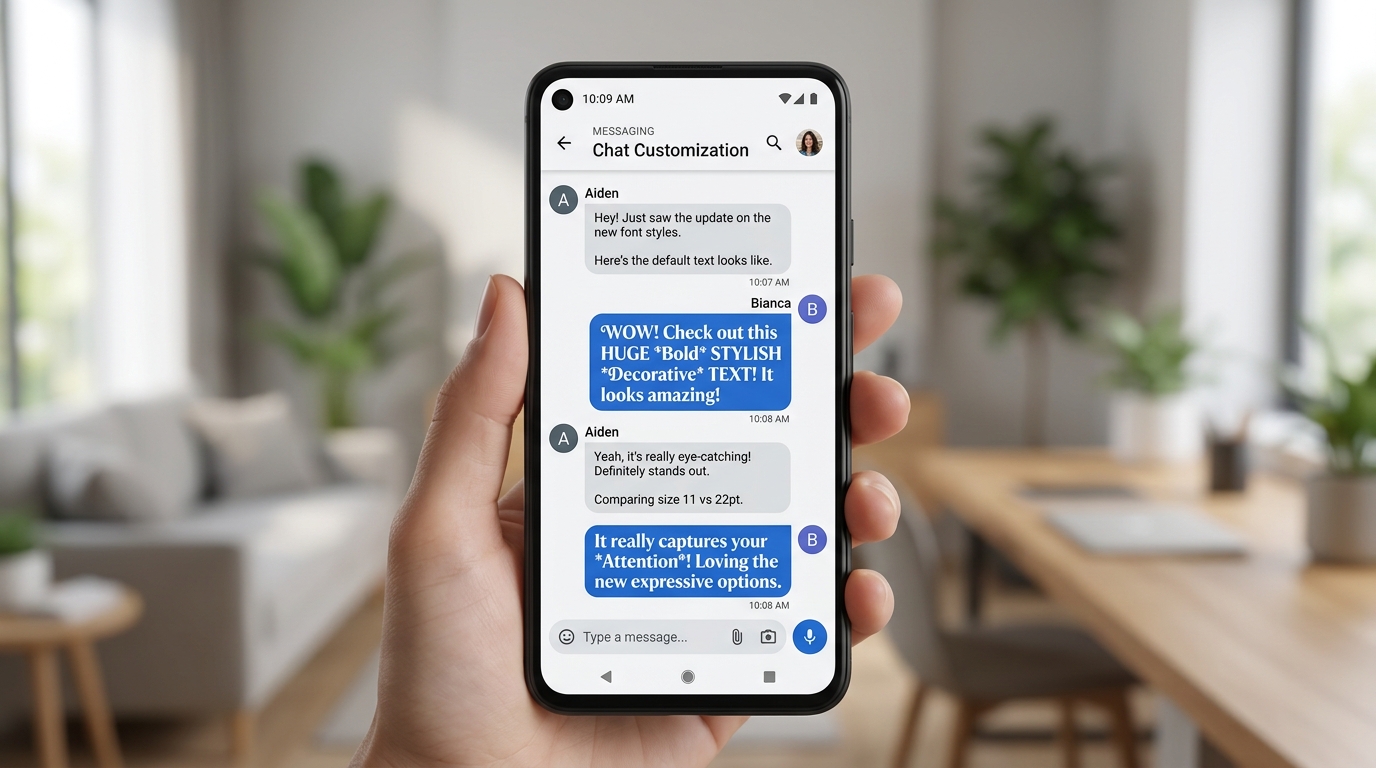
5. Step-by-Step Guide: How to Generate & Send Giant Text on WhatsApp
Sending giant text takes less than thirty seconds. Whether you are using WhatsApp on an Android device, iPhone, or WhatsApp Web on a laptop, follow these simple steps:
- Step 1: Open Big Text Generator: Open your mobile or desktop browser and go to Big Text Generator.
- Step 2: Type Your Short Message: Type the word you want to emphasize (e.g., "SALE", "PARTY", "ALERT", "HAPPY BDAY", or "WINNER"). Keep words between 2 to 8 characters for optimal mobile screen fit.
- Step 3: Pick Your Style: Select from the curated ASCII Art tabs (such as Block 3D, Slant, Bubble, or Double Line) or choose one of the bold Unicode fonts.
- Step 4: Tap the Copy Button: Click "Copy" on the generator card. The tool automatically formats the block art with monospace spacing ready for clipboard transfer.
- Step 5: Open WhatsApp Chat: Open WhatsApp and tap into the target contact or group conversation.
- Step 6: Paste with Monospace Syntax: Tap and hold the message input field and select Paste. If you copied multi-line ASCII art, ensure you type three backticks (```) on a new line before the text and three backticks (```) on a new line after the text.
- Step 7: Hit Send: Tap the green send button. Your recipient will receive an immense, perfectly aligned banner inside their chat window!
6. Preventing Distortion: The Secret to Monospace Formatting on Mobile Displays
The number one reason people fail when attempting to send block text on WhatsApp is font proportionality. Understanding this concept will ensure your banners never look jumbled or broken.
Most modern smartphone fonts (like Roboto, San Francisco, or Samsung Sans) are proportional fonts. In a proportional font, a narrow letter like "i" or a blank space character occupies much less horizontal width than a wide letter like "W" or "M". In normal conversation, this creates comfortable reading cadence.
However, ASCII art relies on an exact grid layout—every character and space must occupy the exact same horizontal width. If WhatsApp renders block art with a proportional font, lines containing spaces will shrink, causing the vertical columns to slant and collapse into an unreadable mess.
When you wrap your text with three backticks (```), you instruct WhatsApp to render the entire block in a monospace font (such as Consolas, Menlo, or Roboto Mono). In monospace mode, every single glyph, dot, and space has identical width, guaranteeing pristine column alignment on every phone model in existence.
On iOS keyboards: Switch to the number keyboard (?123), tap the symbols key (#+=), and long-press the single quote (') key to reveal the grave accent backtick (`). On Android Gboard: Switch to ?123, then =<, and tap the backtick key located in the top row.
7. Styling Your WhatsApp "About" Profile & Status Updates
Did you know that you can also make your WhatsApp profile presence stand out before someone even messages you? Your WhatsApp "About" status is visible to all your contacts, group members, and business leads.
Interestingly, WhatsApp’s native markdown syntax (such as *bold*) does NOT work inside the About profile bio or profile name fields—WhatsApp displays the literal asterisks instead of styling the word.
However, stylized Unicode characters from Big Text Generator bypass this limitation completely! Because Unicode characters are stored as direct glyph codes rather than markdown triggers, they render in bold, aesthetic typography directly inside your WhatsApp profile card, contact info page, and WhatsApp Channel updates.
✨ 𝗦𝗢𝗙𝗧𝗪𝗔𝗥𝗘 𝗘𝗡𝗚𝗜𝗡𝗘𝗘𝗥
📍 Building the future with code
⚡ 𝗔𝘃𝗮𝗶𝗹𝗮𝗯𝗹𝗲 𝗳𝗼𝗿 𝗰𝗼𝗻𝘀𝘂𝗹𝘁𝗶𝗻𝗴8. Technical Comparison: Native Formatting vs Unicode vs ASCII Block Art
To help you decide which technique fits your specific communication goal, here is a detailed side-by-side technical comparison of the three methods:
| Feature | Native WhatsApp Formatting | Unicode Wide / Bold Text | Multi-Line ASCII Block Art |
|---|---|---|---|
| Requires Modifying Phone Settings? | No | No | No |
| Visible to Recipient as Large? | No (Standard size only) | Yes (Appears wider & heavier) | Yes (Massive 4–6 line height) |
| Character Length Limit | Unlimited within chat limit | 1–2 bytes per character | Requires 50–200 characters |
| Works in WhatsApp "About" Profile? | No (Shows raw asterisks) | Yes (100% compatible) | No (Field too short for multi-line) |
| Works in WhatsApp Group Names? | No | Yes (100% compatible) | No (Single-line only) |
| Best Use Case | Everyday conversation emphasis | Titles, headlines, profile bios | Birthdays, celebrations, urgent alerts |
9. Common Mistakes & Troubleshooting for WhatsApp Users
If your large text message does not display as intended, check these four common solutions:
- Mistake 1: Typing text too long for the mobile screen: If you try to generate an ASCII block banner for a 20-letter word like "CONGRATULATIONS", each line will exceed the horizontal width of a smartphone display (typically 360px–420px wide). This causes the lines to wrap, breaking the banner. For long phrases, generate each word separately or use our compact ASCII art styles.
- Mistake 2: Missing the closing backticks: Ensure you place three backticks (```) at both the start and the end of the message. If you only place backticks at the beginning, WhatsApp will not trigger monospace mode.
- Mistake 3: Blank boxes on older recipient phones: If someone in your group chat sees empty boxes with an X (☒), they are using an outdated operating system lacking Unicode font fallbacks. Check our in-depth analysis on why fonts turn into boxes on older Android phones.
- Mistake 4: Accidentally adding spaces inside native asterisks: When using native WhatsApp bold, remember there must be NO space between the asterisk and the adjacent letter (type
*Text*, not* Text *).
Try Big Text Generator Live
Test and copy large Unicode fonts and ASCII block banners instantly for your projects.
Preguntas Frecuentes
Can I increase font size for just one message natively in WhatsApp?
No. WhatsApp does not have a native slider or button to increase the font size of individual messages. You must use multi-line ASCII block art or Unicode fullwidth typography generated by Big Text Generator.
Will changing my phone display font size make messages look bigger to my friend?
No! Changing phone settings only changes the appearance of text on your own physical screen. It does not alter how messages render on your recipient's phone.
Do ASCII art messages cost extra or consume mobile data like images?
No. ASCII art consists entirely of plain text characters. It uses mere bytes of data, making it virtually instantaneous to send and receive even on slow 2G/3G connections.
Why does my ASCII banner look broken or crooked on my friend's iPhone?
This happens when the message was sent without triple backticks (```). Without backticks, proportional fonts give spaces different widths than characters. Always wrap ASCII art inside ``` on both sides.
Does big text work on WhatsApp Web and WhatsApp Desktop?
Yes! Both Unicode bold typography and triple-backtick monospace ASCII art display with pixel-perfect precision on WhatsApp Web, macOS desktop, and Windows desktop apps.
Can I send giant text in WhatsApp Status updates?
Yes. While WhatsApp Status has built-in font styles for photo captions, you can paste Unicode stylized fonts and single-word block text directly into text status updates.